• IoT Deserves Better Than 2.4GHz

    Recently in my neighbourhood there have been a number of car break-ins, usually where vulnerable keyless fobs have been hacked to extend the range and unlock their car. But the owners also discovered that the thieves were using signal jammers to block WiFi doorbell/security cameras. In my opinion this is a more serious issue as they are not the only devices that would be affected by this type of attack, and from what I can see on the websites of many manufacturers and vendors, these companies are not providing enough information on their smart/IoT devices to assist in mitigating this issue.

    For instance, of six well-known vendors in Ireland (B&Q, Screwfix, Harvey Norman, DID Electrical, Currys, and Power City), with the exception of Screwfix, the majority of vendors of smart doorbells listed “WiFi” as connectivity, with no indication of frequency band, or other WiFi capabilities such as standard. To focus on Screwfix, while they did specify frequency band, only one of the Ring doorbells listed 5GHz, though as a “Network Standard”, not as the “Smart Frequency Band”. The rest are 2.4GHz.

    On the same six vendor websites, there are other WiFi devices such as baby monitors, smart thermostats, and other home IoT devices (with little connectivity information or are again only 2.4GHz) which could also be easily affected by signal jammers that are quite easy to purchase online e.g. the DStike Deauther Watch.

    Even online manufacturers/vendors also provide little to no information on the WiFi standards they use, e.g. hivehome dot com for thermostats, or SpaceSense from wizconnected dot com for smart lighting.

    The broad use of 2.4GHz alone is likely because it is the most common WiFi frequency available, and has the furthest range due to its RF properties. But due to its vulnerability to interference (intentional or not), lack of channel space, and lower speeds than 5 or 6GHz WiFi, I don’t think it’s acceptable for manufacturers and/or vendors not to clearly inform their customers of their “smart” or “IoT” device’s WiFi capability, so the customer can make an informed choice and thereby future-proof their network, which is becoming more of a requirement than option, seeing how fast WiFi is improving.

    Since 2020, WiFi 6, 6E, and 7 have been introduced, utilising the 5 and 6GHz bands, with WiFi 7 having estimated speeds of up to 46Gbps. The highest theoretical speed for 2.4GHz is 600Mbps, in reality it’s closer to 450Mbps.

    In Europe, the European Telecommunications Standards Institute has released 480-500MHz (5925/5945-6425MHz) of the 6GHz spectrum for unlicensed systems, while the Federal Communications Commission in the US has opened up the full 1200MHz, i.e. 5.925–7.125GHz. While users in Europe arguably still need more spectrum in 6GHz, I hope that more awareness of the IoT focused security features of WPA3 such as Easy Connect, and more choice of 5GHz and 6GHz WiFi products will result in WiFi manufacturers and vendors providing better service to their customers, and that smart/IoT home and enterprise networks will benefit significantly from these updates, not least at layer 1.


  • What’s Next for WiFi?

    If you google “WiFi projected growth”, you will see multiple industry reports from various research entities, claiming up to 5x increase globally in the value of WiFi and/or number of WiFi devices in the next 5-10 years (2030-2035).

    But I think it’s more interesting to focus on WiFi projects and improvements in recent years and how they could shape networks in the near future.

    In 2017 I became aware of the Wi-Free (as it was named in Ireland) service offered by Virgin Media. This allowed any Virgin Media customer to connect to the Wi-Free network, which was broadcast not only by public WiFi hotspots, but also by the home routers of other Virgin Media customers. In order to use the service a customer had to opt in to allow Wi-Free be broadcast from their own router. Unfortunately, Virgin Media announced in early 2023 that this service would end in November of that year due to declining use and the increase in 4G and 5G traffic.

    In 2018, WiFi NOW reported that the City of New York was considering rolling out public WiFi access across the five boroughs with 250,000 access points installed on street lights. This project (which was planned for completion by 2025) has not come to fruition, although its spearhead LinkNYC has currently rolled out almost 2,000 kiosks across New York City that provide free WiFi access, device charging, and phone services.

    It’s disappointing that these projects were not developed further, but I think that the demand for this type of public WiFi hotspot will grow again in the next decade. This will be as a result of the increase in population outside of cities since Covid, the growing popularity of high density housing, and the restrictions in 5G due to its need for more towers than 3G/4G networks.

    Urban areas and smaller towns could greatly benefit from a public WiFi service (both indoors and outdoors) that is not dominated by cell towers, nor will require a FTTH connection and/or router to every single residence.

    Furthermore, with the cost of living increasing dramatically since Covid, and consumers investing more in energy-saving solutions like home insulation, this brings a new problem due to the attenuation the insulation causes to cellular networks. The proposed solution to this is for cell providers to allow connections to their network using a customer’s WiFi network. This is already known as WiFi Calling, and shows the demands even cellular networks will make on WiFi networks, whether public or private.

    A common complaint about WiFi is security, and although WPA3 support has been mandatory for new WiFi certified devices since 2020, its increasing use in new networks will bring several security benefits.

    OWE (Opportunistic Wireless Encryption) automatically encrypts data between the user device and the access point, even on open (typically guest) networks. It does this by embedding Diffie-Hellman key exchanges in the Association Request and Association Response.1

    SAE (Simultaneous Authentication of Equals) is also employed in WPA3, where the PMK is calculated by both parties without an exchange of key data. A Diffie-Hellman elliptical curve exchange is required to create the PMK, and the PSK can be used for authentication (between client and AP), but not to decrypt data traffic. By comparison, WPA/WPA2 used a PSK (calculated from a passphrase) to create the PMK which was seeding material in the 4WH.2

    For IoT networks, Easy Connect replaces WPS as a means of connecting devices without a user interface, by scanning a QR code, NFC tag, or downloading device information from the cloud. This simplified provisioning process also supports WPA3-Enterprise, which is most likely to be used in future versions of Wi-Free, potentially bringing public WiFi and IoT together in one network.

    Keith Parsons, one of the most well-known WiFi evangelists, has frequently stated that WiFi and 5G will complement each other in the long run, rather than compete. Looking at the last five years and the changes in how and where our communities live and work, I think he will be proven correct before long.

    1. CWSP-207 Official Study Guide (Tom Carpenter) Ch. 10: OWE ↩︎
    2. CWSP-207 Official Study Guide (Tom Carpenter) Ch. 10: SAE ↩︎
  • Useful WiFi Tools

    The following commands and apps are useful for both helpdesk and network teams, especially LDWin and “netsh wlan show interface” in my experience .

    Connectivity

    Ping (-t) IP address of the AP, etc in Windows Command Prompt or Mac Terminal, or ping 8.8.8.8 or 1.1.1.1 to check your internet connection while connected to a specific AP/SSID.

    LDWin app (or Network>LLDP Neighbour/CDP Neighbour on WLAN Pi) This finds the switchport an AP is connected to.

    ____________________________________________

    MAC and IP

    Enter “ipconfig/all” in Windows Command Prompt.

    The equivalent in MacOS is “/sbin/ifconfig” in Terminal.

    ____________________________________________

    SSID, BSSID, Signal, and Channel

    Enter “netsh wlan show interface” in Windows Command Prompt.

    WiFi Signal from Intuitibits is a paid app for MacOS which will give you the same information as above.

    For Windows, use inSSIDer, or WiFi Explorer by Intuitibits for Windows or Mac.

    For Android, use WiFi Analyzer (by VREM) and/or Netspot to compare results, especially to verify which BSSID your device is currently connected to.

    For iOS use Network Analyzer Lite.

    ____________________________________________

    Signal Strength

    Try fast.com, wifiman.com, or speed.cloudflare.com to check signal strengths (rather than exact connection speeds) to an AP in a location where a WiFi issue has been reported.

    ____________________________________________

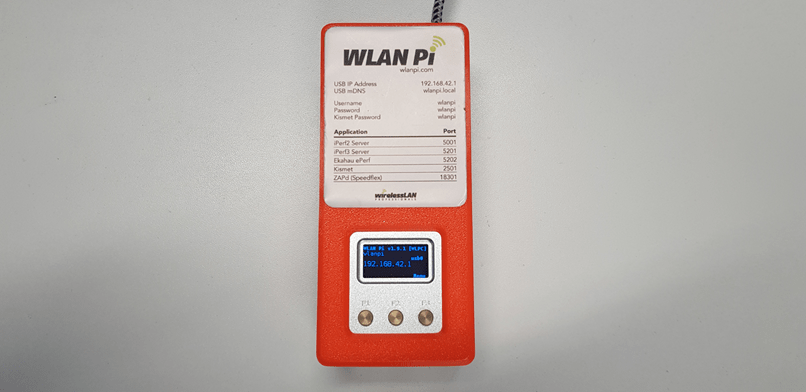
    A WLAN Pi is useful for various tests, listed below. The model tested here is a NEO2.

    Check that the connection is up via USB in your network connections before navigating to 192.168.42.1.

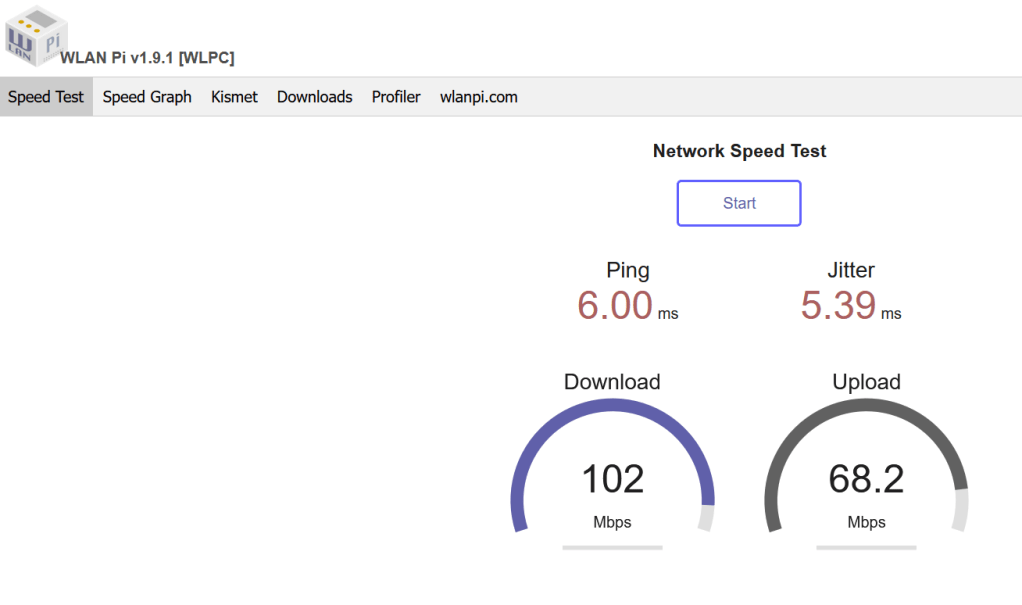
    Speed Test

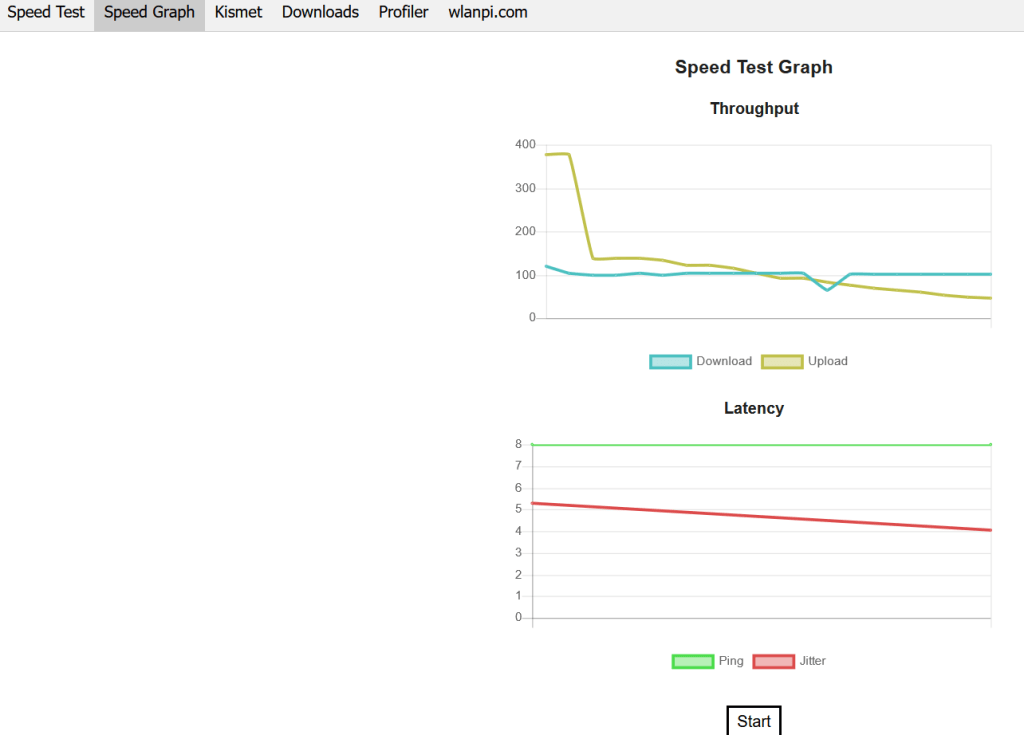
    Speed Graph

    Kismet is a wireless packet sniffer. Start the Kismet app on the WLAN Pi before opening the tab in the GUI.

    Apps > Kismet:

    • Status
    • Stop
    • Start

    Network > LLDP Neighbour/CDP Neighbour: LLDP Neighbour is very useful for detecting the switchports patched to a wallport you are troubleshooting. CDP Neighbour performs the same function for Cisco switches.

    Modes > Hotspot: After clicking Confirm the WLAN Pi will reboot. You can then view the passphrase for the Hotspot under Utils>WPA Passphrase. Hotspot is useful for measuring attenuation when you place the WLAN Pi behind an obstacle such as a wall or window, and running speed or signal tests on your phone or laptop.

    • Cancel
    • Confirm
  • WiFi Troubleshooting Checklist

    When a WiFi issue is reported, it has been my frequent experience (from working in several helpdesks and network teams) that the problem is client-related i.e. if you have multiple users connected to a wireless access point, and only one or two are having WiFi issues, the problem generally isn’t the WiFi. The following information should be acquired and used to troubleshoot the issue before escalating the ticket through the various tiers of an IT team.

    Helpdesk/Service Desk:

    Initial steps:

    • Forget network, then reconnect to WiFi
    • Check if their username and password are correct
    • Check the wireless drivers on their device

    If the above does not resolve the connection:

    • How many users are affected?
    • Device(s) make/model?
    • Location(s)?
    • Message(s), if any, onscreen?
      • Connected: Verify connection issue affects all webpages, not just one or two as they may be the cause of latency.
      • Failure to obtain an IP address: Check the device settings are correct and DHCP is set to Auto. If so, escalate to Networks/Infrastructure
      • Connected/Internet may not be available: Escalate to Networks/Infrastructure
    • Find out the IP address, i.e. type “ipconfig/all” in Windows Command Prompt and check the output from the relevant wireless adapter.
    • Get the MAC address (using ipconfig/all as above) AKA the Physical Address
    • If multiple users affected, is the connection issue occurring in one location or several?

    ALL INFORMATION GATHERED ABOVE SHOULD BE ADDED TO TICKET BEFORE ESCALATING

    Networks/Infrastructure team:

    • One user:
      • Verify that the IP address matches the correct subnet in the IPAM server.
      • In the Wireless NMS, search for the user using the MAC addresses.
      • Check the BSSID they’re connected to. The BSSID identifies the SSID on a particular AP.
        • For Windows users, type “netsh wlan show interface” in Windows Command Prompt.
        • For macOS, hold the Option key while clicking the WiFi icon in the upper right corner. BSSID will be listed in the drop-down menu.
        • For Android or iOS, the user can download the apps WiFi Analyzer or Network Analyzer Lite respectively.
        • The results should show the AP and SSID of the user’s most recent connection.
    • Multiple users:
      • Check access points in the location(s) of connection issue:
        • SSIDs broadcast.
        • Interference on channels in use by 2.4 and 5GHz bands.
        • Uptime: check physical connection of AP and POE settings/logs on switchport.
    • Check DHCP settings on network including the DHCP pool to ensure it’s not full.
    • Check licenses on controller and relevant WNMS.

    If all of the above looks ok, check the wired DS for errors in the configuration. If none are found then open a ticket with the WLAN vendor to investigate a possible firmware bug.

  • JNCIA-MistAI and Juniper Mist Reviewed

    It’s been five months since I passed the JNCIA-MistAI, and one month since I started using Mist with access points actually “claimed” (Mist terminology for registering an AP in your organization or site) and deployed, and to anyone thinking of going for the cert, my advice is to do it the opposite way; get the experience on Mist portal, then do the cert.

    I completed the exam in July as I needed a non-CWNP cert as part of my application for the CWNE. Our campus is mainly Aruba, and I had bought the textbook to go for the HPE Aruba Networking Certified Associate – Campus Access, but when I saw that it required further investment of at least $300 on online labs, and our dept started talking about moving to Mist (which we’ve now deployed in one building, three floors with 50+ APs at time of writing), it seemed like a no brainer to go for the JNCIA cert instead.

    The fact that the Juniper course material is free sealed the deal. There are two options for this, either open a free account on manage.mist.com and study the materials there (be aware that they cover JNCIS material as well, and there’s little indication of what is and isn’t relevant to the JNCIA alone), or open an account with the Juniper Learning Portal, and use their dedicated JNCIA-MistAI course, which had everything I needed to pass, after going through the videos at least twice.

    To open an account on the learning portal, you’ll need to be a Juniper customer, i.e. with access to a serial number from a Juniper device, which I took from a spare switch we had in the office. As I stated before, all you need is in the Juniper Learning Portal videos and practice tests. Note there are two practice tests, the first is a voucher assessment test at the end of the video course, where you get three attempts to pass with 70% or above, and that’ll give you a discount which is significantly lower than the full exam cost. The other practice test is available when you search for MistAI and you should find it in the first few results.

    You can use your account on manage.mist.com to simulate the lessons you’ll learn in the course. At the time I did the exam I did not have access to any Mist devices, APs, switches, etc. I could only view the tabs with empty information, and it definitely would have made more sense with proper input on the Marvis or the Monitor tabs for example.

    I’ve used AOS8 since late 2020, and I’ve found that the Airwave / Glass interfaces generally work well and are easy to navigate. I had hoped for more of the same from Mist, and it doesn’t disappoint for the sheer volume of information gathered. Here are a few pros and cons so far:

    The Monitor > Service Levels / Alerts tabs are exactly what we need in our environment, not least for quickly seeing how many people are using the different SSIDs, what issues they’re experiencing and where.

    The ability of Mist to recognise third party switches via LLDP is very useful, and hopefully with the HPE acquisition of Juniper, it won’t be long before we see Aruba device management integrated into Mist.

    Marvis is also excellent at catching issues such as down APs or bad ethernet connections, before users have a chance to report them. This helps us significantly in diagnosing and prioritising issues as they’re reported to our ServiceDesk.

    In Airwave/Glass, you can go via VisualRF to the overall map of sites, and drill down to the building, then floor, to eventually view APs. But in Mist, when we go to Location>Live View, each map is separate, there’s no option to connect or move between floors of the same building, and therefore see the overall building WiFi “health”, e.g. number of APs up/down.

    In terms of heatmaps, I would also like to see a connection between outdoor and indoor APs. In Airwave, I have a separate map for all the outdoor APs on our campus, but there’s no way to show the effect of their signal on the interior coverage of nearby buildings. Hopefully Mist will incorporate this in the near future, so we can see how much the RF bleed from outdoor APs helps indoor environments, and vice versa.

    There is an unusual element in Mist which I have not seen in Airwave or DNAC and it occurs when searching via BSSID. When I ask a user to open command prompt and run “netsh wlan show interface” to report the BSSID, if I search for it in Airwave/DNAC, I get a result straight away for the correct SSID and AP, as expected. In Mist however, if you search for this in the Access Points tab, you get nothing. Through trial and error I found that you have to remove the last hexadecimal digit from the 6th octet, so for example instead of searching for 70:90:41:12:34:56, you enter 70:90:41:12:34:5. This will then give you the AP name and MAC address, either of which you can use to search in Clients > WiFi Clients. In the list of clients that is then shown, click on the BSSID column to show the list of BSSIDs, which will include the full one reported to you by the user. It’s more complicated than it needs to be, given you have to search both the Access Point and Client tabs to eventually verify the BSSID.

    Overall, there’s room for development, but the cloud-based Mist is a great improvement over the likes of AOS and DNAC, and I look forward to working towards the JNCIS (and possibly JNCIP) Mist certs in the not-too-distant future.

  • How to Locate an Unmapped Access Point in Aruba Airwave

    I started my role as a network engineer on a university campus just over a year ago. The WLAN uses Aruba access points and switches, and with a keen interest in WiFi myself, I set to updating Airwave as soon as I could, focusing on resolving “Down” APs or updating maps with those that were showing in Mobility Conductor but not in Airwave VisualRF. Here are the steps I follow for the latter:

    For indoor APs, go to the page of the unmapped AP in Airwave to verify its WLAN controller name

    Log on to the WLAN controller via CLI

    Run command “show ap arm neighbors ap-name <AP-NAME>”*

    A list of BSSIDs will be shown in the results, check each of them on Airwave to see if they are being broadcast by a nearby AP whose location you know.

    Go to the location of that nearby AP

    To verify the BSSID of it, run “netsh wlan show interface” in Windows Command Prompt.

    Install inSSIDer on your laptop, then check the networks tab.

    The SSID you’re connected to should be top of the list with the best signal and Last Seen set to “now”, but you’ll need to drill down by clicking the binoculars symbol beside the SSID to see all the APs broadcasting it via their BSSIDs.

    Check the list of BSSIDs for your unknown AP, and set its LED to blink to verify its location. Do this using:

    GUI:

    • Go to the AP’s page in Airwave
    • Scroll down to Quick Links
    • Open the dropdown Run Command and select the first option “ap-leds ap-name <AP name> blink”

    CLI:

    • As with the GUI, run the command “ap-leds ap-name <AP name> blink”

    After you’ve found the AP and mapped it, select/run the “ap-leds ap-name <AP name> normal” command.

    For outdoor APs, there is an LED in the side of the outdoor Aruba APs (e.g. AP-575), but it’s not very bright in daylight, therefore you will often need to go to the location of the nearby AP mentioned above, then visually inspect the surrounding area for outdoor APs that are not mapped in VisualRF.

    Verify the unmapped AP by disconnecting and reconnecting to WiFi to avoid sticky client issues, and running inSSIDer to check the signal strength vs the BSSID of the unmapped AP. Like inSSIDer, mobile apps such as NetSpot and WiFI Analyzer (by VREM) will also display local BSSIDs.  

    If using Cisco IOS-XE C9800, run these commands:

    “show ap name neighbor summary” to view a list of neighboring BSSIDs or “show ap name auto-rf dot11” to view the neighbor AP details

    “ap name <AP name> led flash start” “ap name <AP-name> led flash stop”

    There is no equivalent for viewing neighboring APs/BSSIDs in the Juniper Mist portal, so to flash the LED, go to the Access Point page and click Locate in the top right. The button will turn purple and display “Locating” and the LED on the AP should quickly flash multiple colours until you click “Locating” again.